1. Configuration #
Interfaces, addresses and routes.
Reading the state #

ip -br addr               # interfaces et adresses, format court
ip link                   # état des liens (UP/DOWN), MAC
ip route                  # table de routage, passerelle par défaut
ip -s link show eth0      # compteurs, erreurs
hostname -I
resolvectl status         # serveurs DNS utilisés (systemd-resolved)
cat /etc/hosts /etc/resolv.conf
Configuring persistently #
ip commands only change the in-memory configuration. Persistent configuration depends on the distribution: netplan (Ubuntu), NetworkManager (RHEL, workstations), /etc/network/interfaces (classic Debian).
# /etc/netplan/50-static.yaml (Ubuntu)
network:
  version: 2
  ethernets:
    eth0:
      addresses: [192.168.10.20/24]
      routes:
        - to: default
          via: 192.168.10.1
      nameservers:
        addresses: [192.168.10.1, 1.1.1.1]
sudo netplan try # applique avec retour arrière automatique après 120 s sans confirmation
nmcli con show # NetworkManager
sudo nmcli con mod eth0 ipv4.method manual ipv4.addresses 192.168.10.20/24 ipv4.gateway 192.168.10.1 ipv4.dns 1.1.1.1
sudo nmcli con up eth0
sudo hostnamectl set-hostname app01Good practice: Remotely, prefer netplan try or keep an out-of-band console (iLO, cloud console): a network error cuts your own SSH session.2. Diagnosing #
A layered method.
The method #

The tools #
ping -c 3 192.168.10.1            # joignabilité
tracepath 8.8.8.8 ; mtr -rw example.com   # chemin et pertes
dig +short example.com ; dig @1.1.1.1 example.com MX
getent hosts api.interne           # résolution comme le fait le système (inclut /etc/hosts)
ss -tlnp                           # ports TCP en écoute et processus
ss -tnp state established          # connexions établies
nc -zv db.interne 5432             # le port distant est-il ouvert ?
curl -v https://api.interne/health # TLS, en-têtes, code HTTP
curl -o /dev/null -s -w '%{time_connect} %{time_starttransfer} %{http_code}\n' https://example.com
sudo tcpdump -i eth0 -nn port 53   # capturer le trafic DNS
sudo tcpdump -i any -w capture.pcap host 10.0.0.5   # pour Wireshark
Reading ss -tlnp #
0.0.0.0:8080 or *:8080: listening on all interfaces. 127.0.0.1:8080: local only, invisible from the network — a frequent cause of « it works on the server but not from my machine ».
3. Firewall #
Deny everything, then open what is needed.
ufw and firewalld #
# Ubuntu : ufw
sudo ufw default deny incoming
sudo ufw default allow outgoing
sudo ufw allow OpenSSH
sudo ufw allow from 10.0.0.0/8 to any port 5432 proto tcp
sudo ufw enable && sudo ufw status numbered

# RHEL : firewalld
sudo firewall-cmd --get-active-zones
sudo firewall-cmd --permanent --add-service=https
sudo firewall-cmd --permanent --add-rich-rule='rule family=ipv4 source address=10.0.0.0/8 port port=5432 protocol=tcp accept'
sudo firewall-cmd --reload && sudo firewall-cmd --list-all
Common mistake: Allow SSH before enabling the firewall, otherwise you lock yourself out.
nftables #

ufw and firewalld are layers on top of nftables, the kernel firewall (successor to iptables).
# /etc/nftables.conf
table inet filter {
  chain input {
    type filter hook input priority 0; policy drop;
    ct state established,related accept
    iif lo accept
    tcp dport { 22, 443 } accept
    icmp type echo-request limit rate 5/second accept
  }
}
sudo nft -c -f /etc/nftables.conf && sudo nft -f /etc/nftables.conf # vérifier puis charger
sudo nft list ruleset4. SSH #
Administering remotely and securely.
Keys #

ssh-keygen -t ed25519 -C "alice@poste"     # paire de clés (avec phrase de passe)
ssh-copy-id alice@app01                     # installer la clé publique
ssh-add ~/.ssh/id_ed25519                   # agent : saisir la phrase une fois
chmod 700 ~/.ssh ; chmod 600 ~/.ssh/authorized_keys
Client configuration #
# ~/.ssh/config
Host bastion
    HostName bastion.example.com
    User alice
Host app*
    User alice
    ProxyJump bastion
    IdentityFile ~/.ssh/id_ed25519
Copying and tunnels #

scp fichier app01:/tmp/ ; rsync -avz --progress dossier/ app01:/srv/dossier/
ssh -L 5433:localhost:5432 app01   # tunnel : la base distante devient localhost:5433
ssh -D 1080 bastion                # proxy SOCKS
ssh app01 'df -h /'                # commande ponctuelle
5. Transferring files: scp, sftp, rsync and others #
Copy to and from a server, securely and efficiently.
Overview #
| Tool | Principle | Best for | Resume / incremental |
|---|---|---|---|
| scp | simple copy over SSH | a file or folder, occasionally | no |
| sftp | interactive transfer session over SSH | browsing the server, upload scripts | resume with reget / reput |
| rsync | differential synchronization (over SSH) | trees, backups, migrations, deployments | yes (only differences) |
| sshfs | mounts a remote folder like a local one | editing a few remote files | — |
| tar over ssh | archive streamed through the SSH pipe | very many small files | no |
| curl / wget | HTTP(S), FTP download | fetching a published file | resume with -C - / -c |
Good to know: scp, sftp, rsync and sshfs reuse your SSH configuration: keys, port, user and aliases from~/.ssh/config, bastion jump (ProxyJump). Configure SSH once and every tool benefits.
scp #
scp copies files between two machines over SSH. The syntax is that of cp, with host:path for the remote side.
scp rapport.pdf app01:/tmp/                     # local -> distant
scp app01:/var/log/nginx/access.log .            # distant -> local
scp -r conf/ admin@app01:/etc/monapp/            # dossier entier (-r)
scp -P 2222 -i ~/.ssh/id_ed25519 f.txt app01:    # port et clé explicites (P majuscule)
scp -p fichier app01:/srv/                       # conserve dates et droits
scp -J bastion fichier app01:/tmp/               # rebond par un bastion
scp -3 app01:/srv/dump.sql app02:/srv/           # entre deux serveurs, via le poste local
scp -l 8000 gros.iso app01:/tmp/                 # limiter le débit (Kbit/s)
Good to know: Since OpenSSH 9.0 (2022),scpinternally uses the SFTP protocol instead of the old, fragile SCP protocol. The-Ooption forces the old protocol for old servers. For repeated or large transfers, prefer rsync.
sftp #
sftp opens an interactive session, like an FTP client, but encrypted by SSH. It lets you browse the server and also serves as a target for restricted drop accounts (ForceCommand internal-sftp and ChrootDirectory in sshd).
sftp app01
sftp> ls -l /srv            # commandes distantes : ls, cd, mkdir, rm, rename
sftp> lls ; lcd ~/Bureau    # commandes locales : préfixe l
sftp> put rapport.pdf       # envoyer (put -r pour un dossier)
sftp> get -r /srv/logs      # récupérer
sftp> reget gros.iso        # reprendre un téléchargement interrompu
sftp> bye

# Non interactif : un fichier de commandes
printf 'cd /depot\nput export.csv\n' > lot.txt
sftp -b lot.txt depot@partenaire.exemple.fr
rsync #
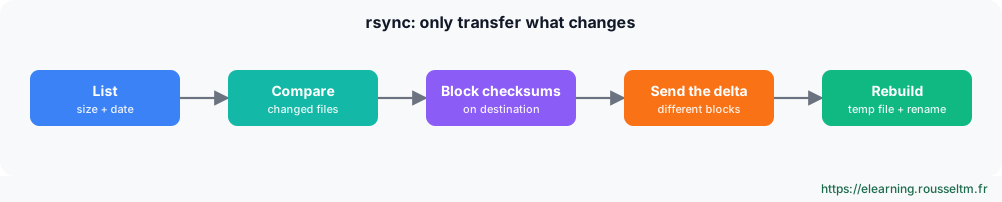
rsync synchronizes a source to a destination by transferring only what has changed: identical files (same size and date) are skipped, and for a large modified file only the different blocks travel. It goes through SSH as soon as one of the paths contains host:.
rsync -avz projet/ app01:/srv/projet/                 # synchroniser un dossier
rsync -avzP gros.iso app01:/tmp/                       # -P = --partial --progress (reprise + progression)
rsync -avz --delete site/ web01:/var/www/site/         # miroir exact : supprime ce qui n'existe plus à la source
rsync -avzn --delete site/ web01:/var/www/site/        # -n (--dry-run) : simuler d'abord !
rsync -avz --exclude '.git/' --exclude '*.log' src/ app01:/srv/src/
rsync -avz -e 'ssh -p 2222 -J bastion' data/ app01:/srv/data/   # options SSH
rsync -aHAX --numeric-ids /srv/ /mnt/backup/srv/       # copie fidèle : liens durs, ACL, attributs étendus
rsync -av --bwlimit=10m backups/ nas:/volume1/backups/ # limiter le débit à 10 Mo/s
rsync -av --backup --backup-dir=../old-$(date +%F) conf/ app01:/etc/app/   # garder les versions remplacées
rsync -avc src/ dst/ # -c : comparer par somme de contrôle (plus lent)| Option | Effect |
|---|---|
-a | archive mode: recursive, keeps links, permissions, times, owner, group (= -rlptgoD) |
-v / -z | verbose / compression during transfer |
-P | resume partial files and show progress |
-n | dry run, writes nothing |
--delete | deletes at the destination what disappeared from the source |
-H -A -X | hard links, ACLs, extended attributes |
--link-dest=DIR | incremental backups: unchanged files are hard links to the previous backup |
Common mistake: Forgetting the trailing slash.rsync -a site/ dst/copies the contents of site into dst;rsync -a site dst/createsdst/site/. Combined with--delete, a slash mistake can empty a folder: always run-nfirst.
Good practice: rsync must be installed on both sides. For a scheduled backup, use a dedicated SSH key, restricted inauthorized_keyswithcommand="rrsync -ro /srv"(script shipped with rsync), so the key cannot do anything else.
sshfs, tar over ssh and downloads #
# Monter un dossier distant (paquet sshfs), puis le démonter
mkdir -p ~/app01 && sshfs app01:/srv ~/app01 -o reconnect
fusermount3 -u ~/app01

# Des milliers de petits fichiers : une seule archive en flux, sans fichier intermédiaire
tar czf - /srv/photos | ssh nas 'tar xzf - -C /volume1/photos'
ssh app01 'tar czf - /etc' > etc-app01.tar.gz           # sauvegarder /etc distant en local

# Copier un disque ou une image
ssh app01 'sudo dd if=/dev/vdb bs=4M status=progress' | gzip > vdb.img.gz

# Télécharger depuis le web (avec reprise)
curl -fLO -C - https://exemple.fr/iso/debian.iso
wget -c https://exemple.fr/iso/debian.iso
sha256sum debian.iso                                    # toujours vérifier l'empreinte publiée
Good to know: For very large volumes, CPU (encryption, compression) and latency often limit throughput, not the network. On a fast LAN, disable compression (no-z); on a slow link, keep it. To sync with object storage (S3, Azure, Google Drive), userclone, which follows rsync’s logic.
Commands to know #
| Action | Command |
|---|---|
| Copy a file to a server | scp fichier app01:/tmp/ |
| Copy a folder from a server | scp -r app01:/etc/nginx ./nginx-app01 |
| Interactive transfer session | sftp app01 |
| Synchronize a folder | rsync -avz src/ app01:/srv/src/ |
| Simulate an exact mirror | rsync -avzn --delete src/ app01:/srv/src/ |
| Large file with resume | rsync -avP gros.iso app01:/tmp/ |
| Mount a remote folder | sshfs app01:/srv ~/app01 |
| Streamed archive | tar czf - dossier | ssh app01 'tar xzf - -C /srv' |
Lab: migrate a website with rsync #
- On
app01, create/var/www/sitewith a few hundred files (for i in $(seq 500); do head -c 20K /dev/urandom > f$i.bin; done). - Copy the folder to
app02withscp -r, then do it again: note that everything is transferred again. - Replace scp with
rsync -avz --stats; run it twice and compare the Total transferred file size line. - Modify 3 files and delete 2 at the source, simulate with
-n --delete, then apply. - Schedule the synchronization every 15 minutes with a systemd timer, using a dedicated key.
Expected result: the second rsync run only transfers changes, and the mirror stays identical to the source.
My progress
Sign in to track your progress and take notes. Sign in
💬 Questions about this lesson
No questions yet: be the first to ask for help or share your configuration.
Recommended Articles
Users, groups, sudo and permissions on Linux
Manage Linux accounts (useradd, usermod, passwd, chage), groups, sudo and visudo, rwx and octal p...
Linux system architecture: kernel, boot and directory tree
Understand how a Linux server works: kernel and user space, the UEFI, GRUB, initramfs and systemd...
Packages, systemd services, logs and scheduled tasks
Install and update software with apt and dnf, manage services with systemctl, write a systemd uni...
Bash scripts for administrators: writing robust scripts
Automate Linux administration with Bash: variables and quoting, conditions, loops, functions, exi...
Ansible: managing security (Vault, SSH, privileges and secrets)
Securing Ansible: Ansible Vault, SSH key authentication, become and sudo, no_log, hardening the c...
Azure networking: VNet, NSG, peering, load balancing and hybrid connectivity
Design networking on Azure: virtual networks and subnets, network security groups (NSG), peering ...
CrowdSec bouncers: principles and firewall bouncer
Understanding CrowdSec bouncers: where to block, live and stream modes, API keys, decisions API, ...
Identities and access on OVHcloud: account, IAM, OpenStack users and keys
Secure access to OVHcloud: two-factor authentication on the account, OVHcloud IAM (identities, po...
Container network security and Kubernetes networking
Secure the container network: how Docker and Kubernetes networking works, CNI, default-deny Netwo...