What you will learn in this TP
- Install Filebeat
- Identify important files and directories
- Use modules
- Advanced use of labels
- Deploy a Harbor registry
- Import an image into a registry
- Scan an image for vulnerabilities
- Set up a docker compose override file
- Advanced use of labels (implemented in Project 2)
Introduction #
What you will learn in this section
- Install Filebeat
- Identify important files and directories
- Use modules
- Advanced use of labels
We will proceed with the installation of Filebeat using Docker technology.
Procedure
You must provide the link to find all Filebeat installation procedures as well as the one for installing it on a Linux-type OS.
Docker #
We will install Filebeat on Docker using a docker compose file.
The folders
You must provide the list of folders required for Filebeat to work properly in a Docker environment.
SWARM mode
You must set up the Docker cluster with SWARM mode enabled. The 'manager' machine must be the cluster manager and the 'workerX' machines must be the cluster workers. As the machines have several IPs, we will use the IP 192.168.56.2 as the control plane management address.REMINDER: On every machine created by Vagrant there is a /vagrant folder which corresponds to the mount of the folder containing the Vagrantfile: in other words, the content of the 6_projet folder. You can therefore use this folder to share files between the machines, for example the file containing the tokens used to join the cluster. Of course, in production you will need to use a more secure solution
You must provide the Docker command that stores in /vagrant/swarm-token-worker the token used to join the cluster as a worker.Shared network
You must create the following networks- common-proxy: for communication between containers through the proxy. It will be fully used in the next lab with Traefik.
- common-observability: for communication between the observability containers
Sub-project 1 #
What you will learn in this sectionWe will create a Docker registry with Harbor on the manager machine. It will run on the domain registry.tp.elearning.rousseltm.fr. For this first project, we will deploy it over HTTP on port 5000 (the default port for Docker registries over HTTP).
- Deploy a Harbor registry
- Import an image into a registry
- Scan an image for vulnerabilities
- Set up a docker compose override file
- Advanced use of labels (implemented in Project 2)
REMINDER: The official Harbor website https://goharbor.io/ and you can watch the Harbor presentation video again at this address: Harbor presentation and deployment
Deployment
You must install Harbor with the trivy service on port 5000. If everything is OK, you should be able to access Harbor from the host machine at the addresshttp://registry.tp.elearning.rousseltm.fr:5000INFORMATION: In the 6_projet folder, there is a folder named 'projects' whose content will automatically be mounted in /opt/projects on all the VMs. You can therefore use it to manage your files for the sub-projects. We recommend one folder per sub-project.
Customisation
The install.sh script generated a docker-compose.yml file, so if you want to change settings you need to edit this file. However, you will lose all your changes every time the script runs.
You must propose a solution to avoid this, knowing that we want the 'proxy' container to connect to the 'common-proxy' network and to have the dt.owner label (Explanation of this Dynatrace label) with the value 'equipe1'. While you are at it, add a label telling Filebeat to ignore its logs.
We will first deploy simply with 'docker compose' to test, and then as a 'docker stack'.WARNING: The override must also be taken into account by the install.sh script
Sub-project 2 #
Build image
You must create a Dockerfile to build an image for the following Go application, which will be named simple-app and tagged 1.0:Adding the image to the Harbor registry
You must push this image to the 'library' project (Explanation of the project concept in Harbor) in Harbor. We chose 'library' because it is the default public project, so the image can be used in other projects (see next lab). As a reminder, after your installation Harbor is available at the addresshttp://registry.tp.elearning.rousseltm.fr:5000Vulnerability scan
You must scan the imported image to check its vulnerabilities against CVEs.
Docker deployment
The configuration to build must meet these requirements:- 2-tier application: Go and Redis
- The services must only run on the workers. This configuration must be externalised so that it can be shared with other applications in the same situation.
- The services must use the latest versions of the official images (in production, use pinned versions) and the Go application must use the image built earlier and available in Harbor.
- 1 instance of each service
- The Go service must export the environment variable APP='APP1'
- The Go service must export the environment variable TASK_SLOT, in which you must put the replica number of the container (Templates).
- The Go application service must be attached to the 'common-proxy' network
Load balancing
You must check that when you call the application URL (http://tp.elearning.rousseltm.fr) it returns this page, and that the highlighted fields change when you refresh the page, switching between the two containers: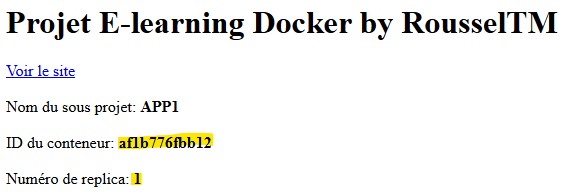
Sub-project 3 #
Observability sub-project made up of Prometheus, Grafana, Node exporter and cAdvisor. This is the observability sub-project, so it will give us visibility over the whole project.
Docker deployment
The configuration to build must meet these requirements:- Make Grafana accessible on port 3000
- Make Prometheus accessible on port 9090
Service configuration
The configuration to build must meet these requirements:- Automatically import the Prometheus and Elasticsearch datasources into Grafana
- Import the dashboards with ID: 609
- Collect Traefik metrics
- Collect metrics from all the nodes in the cluster
- Collect metrics from all the containers
Difficulty level : ●●○○○ (2/5)
My progress
Sign in to track your progress and take notes. Sign in
Course Glossary
Lightweight Agent
A data collection program installed on a host system, designed to consume minimal resources (CPU, RAM). Example: Filebeat, Promtail.
Heavyweight Agent
A collection program equipped with extensive local features (processing, filtering, buffering) that consumes more system resources. Example: Logstash.
Beats
Lightweight data shippers (like Filebeat, Metricbeat, etc.) installed on servers to collect and send various types of operational data (logs, metrics)...
Recommended Articles
Bonnes pratiques Beats : Filebeat, Metricbeat et collecte fiable
Bonnes pratiques Beats : filestream, modules, processors, files d'attente sur disque, sorties séc...
Beats : aller plus loin (sécurité, performances, Elastic Agent et migration vers Alloy)
Industrialiser Filebeat, Metricbeat et les autres Beats : sorties sécurisées, processors, modules...
Kibana : rôle, installation et premiers pas
Ce qu'est Kibana dans la suite Elastic, comment l'installer avec Elasticsearch (start-local, Dock...
SigNoz : architecture et installation
Les composants de SigNoz (collecteur OpenTelemetry, ClickHouse, service de requêtes, interface, a...
OneAgent : méthodes de collecte, installation, Kubernetes et santé
Les méthodes de collecte de Dynatrace (OneAgent, OpenTelemetry, Prometheus, API), l'installation ...
Installer Jaeger v2 : all-in-one, configuration et stockages
Lancer Jaeger v2 en all-in-one, comprendre son fichier de configuration (extensions jaeger_storag...
Fluent Bit : les outputs (sorties), routage et fiabilité de l'envoi
Envoyer les données de Fluent Bit : routage par Match et Match_Regex, sorties Loki, Elasticsearch...
Ingestion Elasticsearch : Bulk API, ingest pipelines, enrich et reindex
Ingérer et transformer des données dans Elasticsearch : Bulk API, ingest pipelines et processeurs...
Elastic Observability : logs, infrastructure, APM et synthétiques
Les fonctions d'Elastic Observability : exploration des logs, inventaire d'infrastructure avec El...