1. The basics #
Cmdlets, help and discovery.
Two PowerShells #
Windows ships Windows PowerShell 5.1, frozen but still present. PowerShell 7 is the modern cross-platform version (Windows, Linux, macOS), installed side by side (pwsh.exe). Most administration modules work with both; use PowerShell 7 for new scripts and 5.1 when an older module requires it.
winget install --id Microsoft.PowerShell --source winget   # installer PowerShell 7
$PSVersionTable.PSVersion
Commands (cmdlets) follow the Verb-Noun form: Get-Process, Stop-Service, New-LocalUser. Verbs are standardized (Get-Verb), so command names are easy to guess.
Find and understand a command #
Get-Command -Noun *Service*            # toutes les commandes sur les services
Get-Command -Module NetTCPIP            # les commandes d'un module
Update-Help -UICulture en-US            # télécharger l'aide (en administrateur)
Get-Help Get-Service -Examples          # exemples d'utilisation
Get-Service | Get-Member                # propriétés et méthodes des objets renvoyés
Get-Alias ls, dir, gci                  # alias historiques
Good practice: Remember three commands:Get-Commandto find,Get-Help -Examplesto learn,Get-Memberto see what an object contains. In a script, write full cmdlet names, not aliases.
2. The object pipeline #
The big difference with Unix shells.
Filter, sort, select #
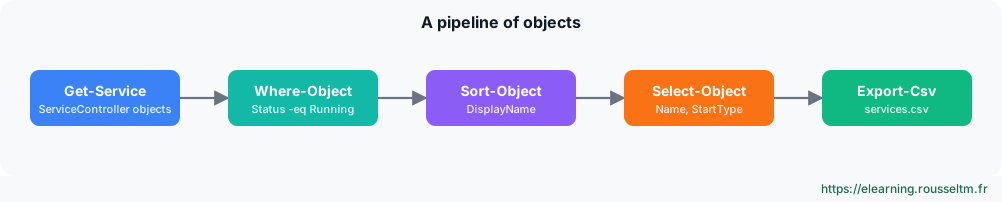
The pipeline passes objects with their properties, not lines of text: no need to cut columns. You filter on a property, sort, pick columns, then export.
Get-Service | Where-Object Status -eq 'Running' | Sort-Object DisplayName |
    Select-Object Name, DisplayName, StartType | Export-Csv C:\rapports\services.csv -NoTypeInformation -Encoding UTF8

Get-Process | Sort-Object CPU -Descending | Select-Object -First 5 Name, Id, CPU, WS
Get-ChildItem C:\Logs -Recurse -File | Where-Object LastWriteTime -lt (Get-Date).AddDays(-30) |
    Measure-Object -Property Length -Sum          # volume des fichiers de plus de 30 jours
Get-EventLog -List | Format-Table -AutoSize       # affichage en tableau (toujours en fin de pipeline)
Common mistake: PuttingFormat-TableorFormat-Listin the middle of a pipeline: these cmdlets produce display objects that cannot be used afterwards. Always put them last, or useSelect-Object.
Variables, arrays and strings #
$serveurs = 'SRV-DC01', 'SRV-FS01', 'SRV-WEB01'      # tableau
$cfg = @{ Partage = 'D:\Data'; Quota = 10GB }         # table de hachage
"Il y a $($serveurs.Count) serveurs, quota : $($cfg.Quota / 1GB) Go"
foreach ($s in $serveurs) { Test-Connection $s -Count 1 -Quiet }
$serveurs | ForEach-Object { "Serveur : $_" }        # $_ = objet courant
Get-Content .\serveurs.txt | Where-Object { $_ -match '^SRV-' }
3. Scripts, modules and errors #
From the console to automation.
A robust script #
# Nettoyer-Logs.ps1 : supprime les journaux plus anciens que N jours
[CmdletBinding(SupportsShouldProcess)]
param(
    [Parameter(Mandatory)][ValidateScript({ Test-Path $_ })][string]$Dossier,
    [ValidateRange(1, 365)][int]$Jours = 30
)
$ErrorActionPreference = 'Stop'
try {
    $limite = (Get-Date).AddDays(-$Jours)
    $fichiers = Get-ChildItem $Dossier -Filter *.log -File | Where-Object LastWriteTime -lt $limite
    foreach ($f in $fichiers) {
        if ($PSCmdlet.ShouldProcess($f.FullName, 'Supprimer')) { Remove-Item $f.FullName }
    }
    Write-Output "$($fichiers.Count) fichier(s) traité(s)"
} catch {
    Write-Error "Échec : $($_.Exception.Message)"
    exit 1
}
.\Nettoyer-Logs.ps1 -Dossier C:\Logs -Jours 15 -WhatIf # simulation
.\Nettoyer-Logs.ps1 -Dossier C:\Logs -Jours 15 -VerboseGood to know:SupportsShouldProcessgives the script-WhatIf(dry run) and-Confirmfor free.$ErrorActionPreference = 'Stop'turns errors into exceptions caught bytry/catch.
Execution policy and modules #
Get-ExecutionPolicy -List
Set-ExecutionPolicy RemoteSigned -Scope LocalMachine   # scripts locaux autorisés, scripts téléchargés signés
Unblock-File .\script.ps1                             # débloquer un script téléchargé et relu
Find-Module PSWindowsUpdate ; Install-Module PSWindowsUpdate -Scope AllUsers
Get-Module -ListAvailable | Select-Object Name, Version
Common mistake: Believing the execution policy is a security boundary. It mostly prevents running a script by mistake; a user can bypass it. To secure, sign your scripts, limit rights and use AppLocker or WDAC.
4. Remote administration #
One server or a hundred at once.
WinRM and PowerShell Remoting #
PowerShell Remoting uses WinRM (port 5985 for HTTP encrypted with Kerberos, 5986 for HTTPS). It is enabled by default on Windows Server; on a workstation, run Enable-PSRemoting. PowerShell 7 can also use SSH.
Enter-PSSession -ComputerName SRV-FS01            # session interactive (exit pour sortir)
Invoke-Command -ComputerName SRV-FS01, SRV-WEB01 -ScriptBlock {
    Get-PSDrive C | Select-Object @{n='Libre(Go)'; e={[math]::Round($_.Free/1GB,1)}}
}
$s = New-PSSession -ComputerName (Get-Content .\serveurs.txt)   # sessions réutilisables
Invoke-Command -Session $s -FilePath .\Inventaire.ps1
Copy-Item .\outil.zip -Destination C:\Temp -ToSession $s[0]
Good practice:Invoke-Commandruns the block in parallel on all servers and returns objects tagged withPSComputerName: it is the basis of inventories and bulk operations.
Commands to know #
| Action | Command |
|---|---|
| Find a command | Get-Command -Noun *Disk* |
| Help examples | Get-Help Get-ChildItem -Examples |
| Explore an object | Get-Process | Get-Member |
| Filter and sort | Get-Service | Where-Object Status -eq 'Stopped' | Sort-Object Name |
| Export to CSV | Get-LocalUser | Export-Csv users.csv -NoTypeInformation |
| Run remotely | Invoke-Command -ComputerName SRV01 -ScriptBlock { hostname } |
| Simulate an action | Remove-Item C:\Temp\* -Recurse -WhatIf |
| History | Get-History ; Invoke-History 12 |
My progress
Sign in to track your progress and take notes. Sign in
💬 Questions about this lesson
No questions yet: be the first to ask for help or share your configuration.
Recommended Articles
Group Policy (GPO): configuring the estate from Active Directory
Design and troubleshoot Group Policy: computer and user configuration, OU linking, LSDOU order, i...
Services, scheduled tasks, event logs and performance
Control Windows services and their recovery, automate with Task Scheduler, use event logs with Ge...
Linux administration best practices
Checklist for administering Linux servers: accounts and sudo, SSH, updates, systemd services, sto...
The Bash shell and files: navigation, redirections, pipes and text processing
Master the Linux command line: paths, file handling, wildcards, redirections, pipes, searching wi...
Processes, memory and performance: monitoring and troubleshooting a Linux server
Understand and control Linux processes (ps, top, signals, nice, jobs), interpret load, memory and...
Linux server security and hardening
Harden a Linux server: least privilege, updates, secure SSH, firewall, fail2ban, SELinux and AppA...
Backup, monitoring and troubleshooting of a Linux server
Operate a Linux server day to day: 3-2-1 backup strategy with rsync, tar, LVM snapshots and resti...
Networking on Linux: configuration, diagnosis, firewall and SSH
Configure and troubleshoot Linux networking: ip, ss, netplan and NetworkManager, DNS, layered dia...
Linux system architecture: kernel, boot and directory tree
Understand how a Linux server works: kernel and user space, the UEFI, GRUB, initramfs and systemd...