1. The basics #
A script is a sequence of commands.
Skeleton #

#!/usr/bin/env bash
# backup-etc.sh : archive /etc dans /var/backups
set -euo pipefail

readonly DEST=/var/backups
readonly STAMP=$(date +%F_%H%M)

main() {
    mkdir -p "$DEST"
    tar -czf "$DEST/etc_$STAMP.tar.gz" /etc
    echo "Archive créée : $DEST/etc_$STAMP.tar.gz"
}

main "$@"
chmod +x backup-etc.sh && sudo ./backup-etc.sh
bash -x backup-etc.sh # exécuter en traçant chaque commande| Option | Effect |
|---|---|
set -e | stops the script at the first failing command |
set -u | error if a variable is not defined |
set -o pipefail | a pipe fails if any of its commands fails |
Variables and quoting #
nom="web 01"
echo "$nom"          # guillemets doubles : la variable est développée, les espaces préservés
echo '$nom'          # guillemets simples : texte littéral
fichiers=$(ls /etc)  # substitution de commande
echo "${nom:-defaut}"     # valeur par défaut
echo "${#nom}"            # longueur
echo "${fichier%.log}.gz" # remplacer un suffixe
(( total = 3 * 7 )) ; echo "$total"
Good practice: Always put variables in double quotes ("$var"): without them, a file name with a space becomes two arguments.2. The different shells: sh, bash, ksh, zsh, dash… #
Choosing the right interpreter for interactive use and for scripts.
What is a shell? #
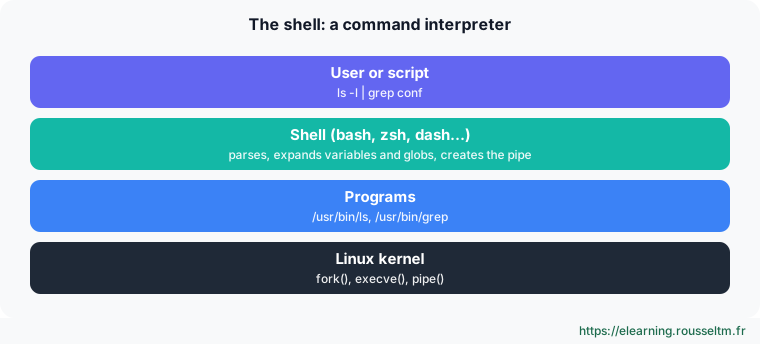
The shell is the program that reads your commands, interprets them (variables, globs, redirections, pipes) and asks the kernel to run programs. It is both an interactive interface and a scripting language. Several shells exist; they share a common base inherited from the Bourne shell, but differ in their extensions and comfort.
echo $0              # shell courant (ex. : -bash ; le tiret indique un shell de connexion)
echo $SHELL          # shell de connexion défini pour l'utilisateur
cat /etc/shells      # shells autorisés sur la machine
ls -l /bin/sh        # vers quoi pointe sh (dash sur Debian/Ubuntu, bash sur RHEL)
getent passwd $USER | cut -d: -f7
chsh -s /usr/bin/zsh # changer son shell de connexion (effectif à la prochaine connexion)
A brief history #
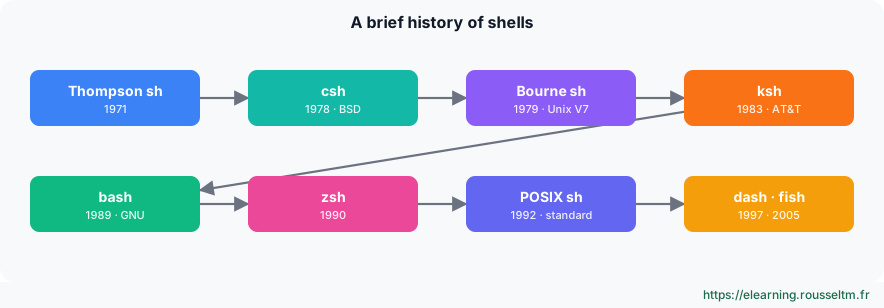
The Bourne shell (sh, Stephen Bourne, 1979) set the scripting syntax: if … then … fi, case … esac, for … do … done. The C shell (BSD) brought history and aliases with a C-like syntax. The Korn shell merged both worlds, and the POSIX standard (1992) defined a standard “sh” largely inspired by ksh. bash (Bourne Again SHell), written for the GNU project, became the default shell of most Linux distributions.
The shells one by one #
- sh (POSIX): no longer a specific program but a standard.
/bin/shis a link to a compatible shell: dash on Debian and Ubuntu, bash in POSIX mode on RHEL, Fedora and macOS, ash (BusyBox) on Alpine and in many containers. A#!/bin/shscript must therefore stick to POSIX syntax. - bash: default shell of most distributions. It adds to sh arrays (indexed and associative),
[[ … ]], arithmetic(( … )), expansions such as{1..10}and${var//a/b},local, process substitution<( … ), history and programmable completion. It is the de facto standard for Linux administration scripts. - dash (Debian Almquist shell): a minimal, strictly POSIX shell, several times faster to start than bash. Debian and Ubuntu use it as
/bin/shto speed up system scripts. It is not meant for interactive use. - ksh (Korn shell): forerunner of many features later adopted by bash (arrays,
[[ ]], arithmetic, line editing). Still widespread on commercial Unix systems (AIX, Solaris, HP-UX) and in older enterprise and banking scripts. Two variants: ksh93 (AT&T, still maintained) and mksh (MirBSD, used by Android until recently). - zsh (Z shell): a very rich interactive shell, compatible with most bash and ksh syntax: advanced completion, spelling correction, recursive globs
**/*.log, themes and plugins (Oh My Zsh, Prezto). Default shell of macOS since Catalina (2019) and of Kali Linux. Beware of scripting differences: arrays start at index 1 and an unquoted variable is not split into words. - csh / tcsh: C-like syntax (
if (…) then … endif,setenv VAR value). tcsh, its improved version, is still root’s default shell on FreeBSD. Not recommended for scripts: limited error and redirection handling. - fish (Friendly Interactive SHell): designed for interactive comfort with no configuration (autosuggestions, syntax highlighting, completion from man pages). Its syntax is not POSIX compatible (
set var value,if …; end): keep it for the terminal, not for shared scripts. - Others: BusyBox ash (embedded systems, Alpine images), nushell and PowerShell (available on Linux, handles objects rather than text), elvish, xonsh (Python and shell mix).
Comparison table #
| Criterion | sh (POSIX) / dash | bash | ksh93 | zsh | fish |
|---|---|---|---|---|---|
| POSIX compatibility | reference | yes (+ extensions) | yes (+ extensions) | almost (emulate sh mode) | no |
| Arrays | no | indexed and associative (index 0) | indexed and associative | yes (index 1) | lists |
[[ ]], (( )) | no | yes | yes | yes | no (test, math) |
| Interactive comfort | minimal | good | good | excellent | excellent, out of the box |
| Startup speed | very fast | average | fast | average | average |
| Configuration file | ~/.profile, $ENV | ~/.bashrc, ~/.bash_profile | ~/.kshrc | ~/.zshrc, ~/.zprofile | ~/.config/fish/config.fish |
| For scripts | portable, system, containers | Linux administration | commercial Unix, legacy | personal | avoid |
Writing for sh or for bash: “bashisms” #
A bashism is bash-specific syntax that fails under a strict sh such as dash. The shebang decides the interpreter: #!/bin/sh promises POSIX syntax, #!/usr/bin/env bash allows bash extensions.
| bash | POSIX equivalent |
|---|---|
[[ $a == x* ]] | case $a in x*) … ;; esac |
[[ -f $f && -r $f ]] | [ -f "$f" ] && [ -r "$f" ] |
(( n++ )) | n=$((n + 1)) |
for i in {1..5} | for i in 1 2 3 4 5 or $(seq 5) |
tab=(a b c); echo ${tab[1]} | set -- a b c; echo "$2" (no arrays) |
function f { … } | f() { … } |
echo -e "a\tb" | printf 'a\tb\n' |
source fichier | . ./fichier |
cmd &> log | cmd > log 2>&1 |
read -p "Nom ? " nom | printf 'Nom ? '; read -r nom |
set -o pipefail | POSIX since 2024 (dash ≥ 0.5.12); otherwise missing |
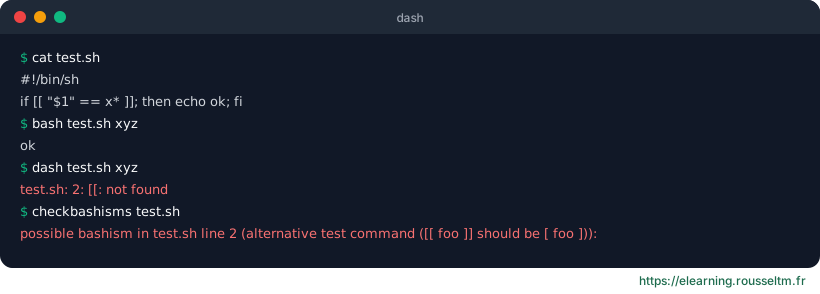
Common mistake: Writing #!/bin/sh at the top of a script tested only with bash. On a RHEL machine everything works; on Debian, Ubuntu or in an Alpine image, the same script fails. Either target bash and say so in the shebang, or test with dash.Good practice: For a Linux administration script, choose bash (#!/usr/bin/env bash): it is available everywhere and its features make scripts safer. Target POSIX sh for scripts that must run in minimal containers, embedded systems, initramfs or across several Unix systems. Check withshellcheck -s shorcheckbashisms.
Login shell, interactive shell and startup files #
The same shell does not read the same files depending on how it is started. This is the classic cause of “my variable works in the terminal but not in cron”:
| Situation | Shell type | Files read by bash |
|---|---|---|
SSH login, console, su - | login + interactive | /etc/profile, then the first found of ~/.bash_profile, ~/.bash_login, ~/.profile |
New graphical terminal, typing bash | interactive, non-login | /etc/bash.bashrc, ~/.bashrc |
Script, cron, ssh host command | non-interactive | none (except $BASH_ENV) |
Equivalents: zsh reads ~/.zshenv (always), ~/.zprofile (login) and ~/.zshrc (interactive); ksh and dash read ~/.profile at login and the file named by $ENV when interactive.
Good practice: Put environment variables in~/.profileor~/.bash_profile, aliases and prompt in~/.bashrc, and have~/.bash_profilesource~/.bashrc. In a script or cron job, rely on none of these files: setPATHand the needed variables in the script.
Commands to know #
| Action | Command |
|---|---|
| Current shell | echo $0 ; ps -p $$ |
| Installed shells | cat /etc/shells |
| /bin/sh target | readlink -f /bin/sh |
| Change login shell | chsh -s /bin/zsh |
| bash version | bash --version ; echo $BASH_VERSION |
| Run bash in POSIX mode | bash --posix script.sh |
| Test with dash | dash -n script.sh && dash script.sh |
| Detect bashisms | checkbashisms script.sh ; shellcheck -s sh script.sh |
| Install ksh, zsh, fish | sudo apt install ksh zsh fish # ou dnf |
Lab: one script, five shells #
- Install
dash,ksh,zshandfish, then checkcat /etc/shellsandreadlink -f /bin/sh. - Write
info.shthat prints the hostname, counts the files in/etcwith a loop, uses an array and a[[ … ]]test. - Run it with
bash,dash,kshandzsh; note the errors and differing results (array index under zsh). - Run
checkbashismsandshellcheck -s sh, then rewrite the script in pure POSIX until it gives the same result in all four shells. - Try the same logic in fish and observe the syntax differences.
Expected result: you know which shell actually runs a script, can spot a bashism and choose between bash and POSIX sh.
3. Control flow #
Conditions, loops, functions.
Conditions #
if [[ -f /etc/nginx/nginx.conf ]]; then echo "nginx configuré"; fi
if ! systemctl is-active --quiet nginx; then
    systemctl restart nginx
fi
[[ $EUID -eq 0 ]] || { echo "À lancer en root" >&2; exit 1; }
[[ $usage -gt 90 && $env == prod ]] && alerte
case "$1" in
    start|stop) systemctl "$1" app ;;
    *) echo "Usage : $0 {start|stop}" >&2; exit 2 ;;
esac
Useful tests #
| Test | True if |
|---|---|
-f / -d / -e | file / directory / exists |
-r -w -x | readable, writable, executable |
-z / -n | empty / non-empty string |
-eq -ne -lt -gt | numeric comparisons |
== !=, =~ | string comparison, regular expression |
Loops #
for host in web01 web02 db01; do
    ssh "$host" uptime
done
for f in /var/log/app/*.log; do gzip "$f"; done
while read -r user shell; do
    echo "$user utilise $shell"
done < <(awk -F: '$3>=1000 {print $1, $7}' /etc/passwd)
for i in {1..5}; do curl -sf http://localhost:8080/health && break; sleep 2; done
Functions and exit codes #
log() { echo "$(date '+%F %T') [$1] ${*:2}" | tee -a /var/log/monscript.log; }
check_disk() {
    local usage
    usage=$(df --output=pcent / | tail -1 | tr -dc '0-9')
    (( usage < ${1:-90} ))      # code retour 0 si OK
}
if ! check_disk 85; then log WARN "disque racine presque plein"; fi
echo $?   # code de retour de la dernière commande (0 = succès)
A script must return 0 on success and a non-zero code on error: cron, systemd, Ansible and CI pipelines use it to detect failure.

4. Making a script robust #
What sets a production script apart.
trap, lock and arguments #
#!/usr/bin/env bash
set -euo pipefail
TMP=$(mktemp -d)
trap 'rm -rf "$TMP"' EXIT                       # nettoyage, même en cas d'erreur
trap 'echo "Erreur ligne $LINENO" >&2' ERR

exec 9>/run/lock/backup.lock
flock -n 9 || { echo "Déjà en cours" >&2; exit 1; }   # empêcher deux exécutions

DRY_RUN=0 ; RETENTION=7
while getopts "nr:h" opt; do
    case $opt in
        n) DRY_RUN=1 ;;
        r) RETENTION=$OPTARG ;;
        h|*) echo "Usage : $0 [-n] [-r jours]"; exit 0 ;;
    esac
done
Quality #

- Analyze every script with ShellCheck (also in CI).
- Make scripts idempotent: running them again must not break anything (
mkdir -p, test before creating). - Offer a dry-run mode (
-n) for destructive actions. - Log with timestamps, on stderr for errors.
- Version scripts in Git; beyond ~200 lines or complex logic, switch to Python or Ansible.
Scheduling #
A maintenance script is run with a systemd timer (logging, catch-up, dependencies) or cron. Test it first with the minimal environment: env -i /bin/bash --noprofile --norc ./script.sh.
My progress
Sign in to track your progress and take notes. Sign in
💬 Questions about this lesson
No questions yet: be the first to ask for help or share your configuration.
Recommended Articles
The Bash shell and files: navigation, redirections, pipes and text processing
Master the Linux command line: paths, file handling, wildcards, redirections, pipes, searching wi...
Linux vs Unix: the complete guide to commands and distributions
Understand the differences between Linux and Unix, explore distributions (server, desktop, lightw...
Packages, systemd services, logs and scheduled tasks
Install and update software with apt and dnf, manage services with systemctl, write a systemd uni...
PowerShell for Windows administrators
Master PowerShell to administer Windows: cmdlets and help, object pipeline, filters and formats, ...
Linux administration best practices
Checklist for administering Linux servers: accounts and sudo, SSH, updates, systemd services, sto...
Users, groups, sudo and permissions on Linux
Manage Linux accounts (useradd, usermod, passwd, chage), groups, sudo and visudo, rwx and octal p...
Storage on Linux: disks, partitions, file systems and LVM
Administer Linux storage: lsblk and blkid, GPT partitioning, ext4 and XFS, mounting and /etc/fsta...
Networking on Linux: configuration, diagnosis, firewall and SSH
Configure and troubleshoot Linux networking: ip, ss, netplan and NetworkManager, DNS, layered dia...
Linux server security and hardening
Harden a Linux server: least privilege, updates, secure SSH, firewall, fail2ban, SELinux and AppA...